Showing posts with label MCP4922. Show all posts

Wednesday, April 6, 2016

DIY Ribbon Controller - CV

In sharing my work on a MIDI-enabled ribbon controller, a couple of the good folks at Muff Wiggler wanted more.  They wanted to see a CV-enabled ribbon.  So, as I'm always ready for more hacking, today I present for your enjoyment: my home-brew CV ribbon controller.


Switching from MIDI to CV:  This CV-enabled ribbon builds directly upon my MIDI ribbon.  It uses literally the same ribbon, which I built (like everyone) using a $20 soft-pot sensor.  Like my MIDI ribbon, This CV ribbon also uses an Arduino to sense ribbon and to generate the commands for the synth.  The main thing that is different with the CV ribbon is that I needed to add a digital-to-analog converter (DAC) to generate the CV signals that'll drive my old synths.

The only difference between the MIDI ribbon and the CV ribbon is how the Arduino outputs its commands.  The MIDI ribbon uses an Arduino "MIDI Shield" to send the MIDI messages whereas the CV Ribbon uses a DAC to generate the CV voltages.

Using a DAC:  A DAC is a device for generating arbitrary analog voltage signals.  You send it commands (such from an Arduino) and its output jumps to the voltage level that you desire.  They're very handy devices for synth hacking.  My experience is with the MCP4922, which is a 2-output, 12-bit DAC.  After refreshing my memory using its datasheet, I decided to wire the DAC to the Arduino as shown in the schematic.

The ribbon (left)  is wired to the Arduino (left-center).  The Arduino is wired to the DAC (right-center).  The DAC is wired to the CV outputs (right).  Easy.

Wiring the DAC:  From this schematic, I used a solderless breadboard to wire up my DAC.  I chose to use an Arduino Micro because it easily fits into the breadboard (unlike an Arduino Uno).  Wiriting software for the Micro is the same as for the Uno, so it's a trivial swap.  The wiring diagram below (go Fritzing!) shows my plan for wiring the DAC to the Arduino.  I added the headphone jacks to make it easy to get the signal in from the ribbon and to get the CV signals out to the synth.  For breadboarding, I like using this jack with this breakout from Sparkfun.

My wiring plan for the Arduino Micro and the MCP4922 DAC.  Power is supplied from USB connection to the Arduino.

Real-World Wiring:  Of course, once real wires are involved, it never looks as pretty as the plan.  The picture below shows my actual breadboard with its actual wires.  All the connections are the same, but the routing is different.  Also, I moved where I put the headphone jacks: the ribbon input is the one on the bottom right and the two output jacks are dangling off the back (one is black, the other beige).  Note my use of the blue rubber band to keep the output jacks somewhat contained.

The real-world wiring is never as nice as the plan.

Pitch and Trigger CV Signals:  For this hack, I'm generating three signals to control my synth: a pitch CV, a trigger (a.k.a. gate) signal, and a filter CV.  The pitch CV controls the pitch of the synth.  It's a signal that can take any value between zero volts (a low pitched signal) and 5V (a high pitched signal).  The trigger signal, by contrast, is simply low (0V) or high (5V).  It tells the synth whether the note is "on" or "off".  Since it is just a LOW/HIGH signal, it is generated by one of the Arduino's digital pins, not the DAC.

Filter CV:  The last signal that the system generates -- the filter CV -- controls the cutoff frequency of the filter.  Like the pitch CV, it can be any value between 0-5V, and so I use the 2nd channel of the DAC to generate it.  I added this capability to the system (like I did with the MIDI version) so that the filter opens up a bit as you play higher notes.  This is the same kind of interaction you'd get with the keyboard if you had the "keyboard tracking" turned up about half-way.  Adding this behavior made the ribbon feel more natural and more engaging.

In response to the ribbon, the Arduino+DAC generates three signals: pitch CV, trigger CV, and filter. CV 

Arduino Software:  With the hardware assembled, and with my CV signals decided, I wrote the software for the Arduino.  I reused my software for the MIDI ribbon and simply added the functions to drive the MCP4922 DAC.  My code is available on my GitHub here.  Having both the MIDI and CV functionality in one program makes it more complicated to read, but it gets the job done.

The Korg Mono/Poly has good flexibility for interfacing to external gear.  Here, my circuit is creating CV signals that I'm injecting to control the filter cutoff ("VCF fcM IN", on the left), to control the gating of the note ("TRIG IN"), and to control the pitch of the note ("CV IN").

Putting it All Together:  With the software written, and with the CV signals injected into the correct locations on the back of the synth (see pic above), I was ready to get to the business of playing.  Of course, it didn't work the first time,but after some debugging (should the Trigger signal be set high or low on the Mono/Poly?), I got it to work pretty well.  Interestingly, I found myself playing the ribbon differently when attached to my Mono/Poly than when it was connected to my Prophet 6.  I think that it had something to do with the CV vs MIDI.  MIDI is designed for discrete pitch instruments (like keyboards).  I feel that the continuous pitch of a ribbon is just better suited to CV.

My old Mono/Poly, with the magnet-backed ribbon just above the keybed, and with my magnet-backed breadboard controller in the upper-left.

Next Steps:  Now that I have a DAC working, it opens all sorts of possibilities.  A DAC could be used to generate audio signals directly, not just CV signals.  By directly synthesizing its own audio, I could make the ribbon a stand-alone instrument.  Yes, using these electronics to create a wavetable ribbon synth could very, very interesting.

Thursday, August 21, 2014

Testing my MCP4922 PCB

With my custom MCP4922 PCB assembled, it is time to test it.  Soldering is good and fine fun, but the whole point is to get something that actually works!


Connecting to Arduino:  My plan is to connect it to an Arduino and to have it generate a variety of DC voltages.  Unfortunately, it was at this point that I realized I had no female wires to mate to the male headers that I put on my board.  Doh!  So, I had to use alligator clips which are a real pain to work with.  As you can see in the picture above, it is difficult to keep them from touching each other and shorting everything out.

Jumper Some Pins:  Another hiccup is that, as I was hooking it all up to to the Arduino, I realized that I designed my PCB to be overly-general.  Specifically, I when I designed the board, I brought out two of the MCP4922 pins (*SHDN and *LDAC) to the header when I really didn't need to.  For the way that I use this chip, I just need *LDAC tied LOW and *SHDN tied HIGH.  Doing this with alligator clips is annoying, so I just soldered short jumper wires on the bottom of the board to connect these pins to GND and VDD.  This simplified my setup nice.

Arduino Software:  With the hardware all hooked up, I wrote a little Arduino program to drive the DAC.  You can get the code here.  The code outputs two different voltages on the A and B outputs of the DAC to prove that they work.  Output A steps from 0.0V up to 5.0V in one volt increments.  Output B does the opposite -- it steps from 5.0V down to 0.0V in one volt increments.

Victory:  Starting up the program, it automatically stepped through its commands for the different voltages.  I measured the voltages with my digital multi-meter (DMM) to confirm that I was getting the correct output.    As you can see in the pictures below, Output A of the DAC does a pretty good job of hitting the voltages that I wanted.  My first PCB works!  Victory!


Exploring the Error:  Because I'm a nerdy guy, I couldn't leave it there.  I couldn't just enjoy my victory in peace.  No.  I had to look at the results in more detail.  Specifically, I was troubled by the fact that the values reported by the DMM were not quite as close to my desired values as I hoped.

Should be Better?:  I hoped to see exact round numbers spanning 0.0 up to 5.0V.  As you can see in the pictures above, my DMM is reporting values that are off by 1-15 mV.  That seems like a lot of error for a 12-bit DAC.  I mean, on the surface, one might expect an accuracy from the DAC of approximately 1 least significant bit (LSB).  One can compute the magnitude of 1 LSB by scaling from the "full scale" voltage of the device.  Since I'm running it at 5.0V, 1 LSB is (5.0 V / 2^12 bits) = (5.0 / 4096) = 1.2 mV.  This is quite a bit smaller than the 15 mV of error that I'm seeing in some cases.  My gut feeling is that I should be doing better.  So, I started to dig into the details...

Error in Full Scale:  First, note that my DMM shows that the "5.0V" case is actually indicating 5.015V.  This suggests that my "full scale" is actually bigger than 5.0V -- that it is actualy 5.015 V.  In my setup, "full scale" is set by the voltage of the power being delivered to the PCB, which is coming from the Arduino.  The Arduino (Uno) is nominally outputs 5.0V, but it is not a precision voltage reference.  For example, the on-board regulator is only good to +/-50 mV and others have also seen their Arduino "5.0V" be off by 12-14 mV.  So I do not find it surprising that full scale voltage could be running 15 mV higher than expected.  If you want a precise "full scale", you probably have to build/buy a precision voltage reference instead of using the Arduino's 5V pin.

New Expected Values:  What does the 5.015V "full scale" value mean for my expectations for the DAC output?  Well,  since all of the DAC's output values are scaled from this full scale value, the output values that I should actually expect to see are 0.000V, 1.003V, 2.006V, 3.009V, 4.012V, and 5.015V.  These values are closer to the ones that I actually saw, which is good.  My measured values are now only off by 0-6 mV (the worst error is for the 2 V reading).  Still, 6 mV is larger than the 1.2 mV error that I might expect based on 1 LSB, so I'm still not satisfied.

DAC Error from Datasheet:  My next idea is that maybe my expectation of 1 LSB accuracy is wrong.  Digging into the datasheet for the MCP4922, I see in the big table on page 5 under "DC Accuracy" that the INL error can be +/- 4 LSB (!).  If 1 LSB is 1.2 mV, then a 4 LSB error would correspond to 4.8 mV.  That's a lot closer to the 6 mV error that I seem to have...but it's still doesn't account for all of it.

Error in DMM:  My next idea is that maybe the error isn't all with the DAC.  Maybe some of the error is in my DMM.  Looking at the user manual for my Extech EX530 digital multi-meter, it states that the device has an accuracy of "+/- (0.06% reading + 2 digits)".  Let's compute what that means for my problematic 2V reading.  First, at 2V, 0.06% is 1.2 mV.  Second, "2 digits" means 2x the value of the smallest digit on the display.  For the 2V reading, the smallest digit is 0.1 mV, so "2 digits" is an error of 0.2 mV.  As a result, the total error for my DMM could be +/- 1.4 mV.

Total Error:  Combining this 1.4 mV of possible error for the DMM with the 4.8 mV of possible error for the DAC, I get a total error of up to 6 mV. This happens to be the same amount of error that I actually saw.  While that's good (I guess), it is also unsatisfying because it requires all of my errors to be at their maximum.  For now, I'm going to accept that.  But, moving forward, I'm going to keep an eye on how closely my DAC's values are to my desired values.

Thanks for reading!

[Note: The comment section of this post is closed due to too much spam from PCB services.]

Wednesday, August 20, 2014

Assembling my MCP4922 DAC Breakout

One of my most popular posts was this one on making a simple PCB for the MCP4922 DAC.  I'm so glad that people were interested in this!  After a long delay, I have finally decided that it is time to assemble the PCB.  Let's do it!


This post will be mostly pictures showing how I soldered in the parts.  My technique is pretty poor, so don't take this post as guidance on how you *should* do it.  Instead, take this post as comfort that you can be bad at soldering and still get things to work just fine.

First, I got my MCP4922 chip from Digikey.  Currently, $3.14 each, when bought singly.


I inserted the chip into the PCB.  Fits just fine!


I flipped over the PCB to work on the legs of the chip.


I soldered each of the legs:


With all of the legs are soldered, the picture below shows that the joints in the front row are pretty nice, but that the joints in the back row have too much solder.  Oh well.  I'll try to do better next time.


Upon close inspection, I feel that the legs stick out too far.  So, I trim them with my wire snippers.  I wish I had better snippers.  These don't snip very well.  Better ones might let me snip flush against the PCB.


The chip is now fully soldered in place.  The next step is to add the connectors around the edge of the board.  I could have used male pin headers or female.  I only had male headers on hand, so that's what I used.  As you can see below, I used a blank proto-board to hold the pins in place so that they poke up straight through my PCB.  Then I solder them in place.


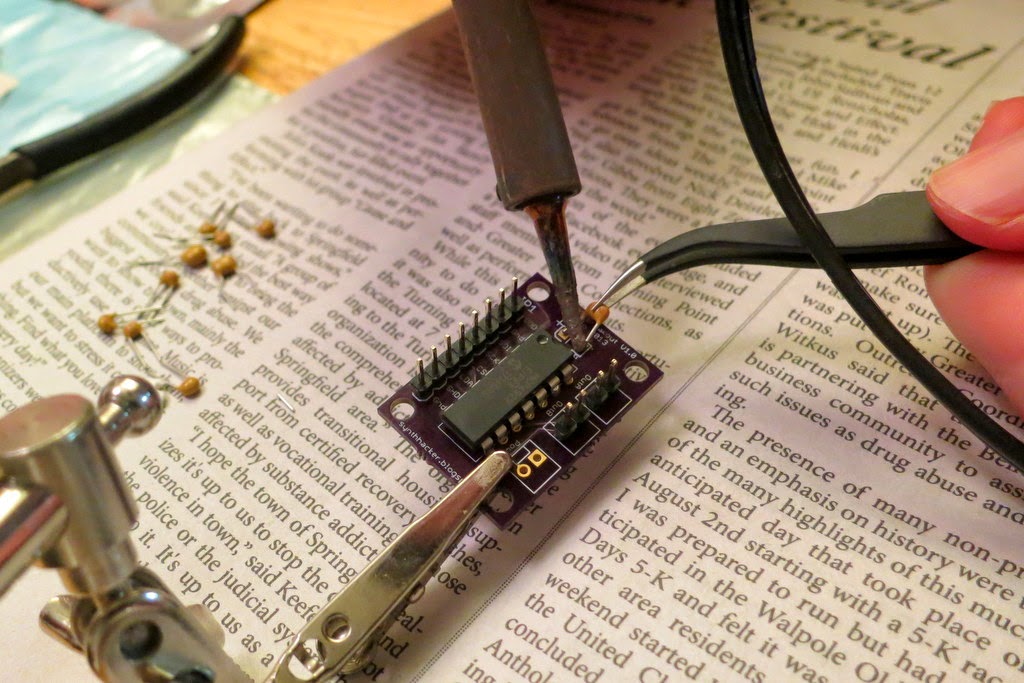
Once all the pin headers are in place, I need to solder in the two caps (10 uF and 0.1 uF) to decouple the power supply.  In the design of the PCB, I was bold and made both of them be surface mounted parts.  I have barely worked with surface mount components, so I don't really know what I'm doing.  In the picture below, you see me starting by tinning the pads.  I don't know if this is the right thing to do, but here I go...


After tinning, I try soldering on the surface-mount capacitor.  I'm not sure what the best technique is.  I had to try it several times until I was able to get both ends of the cap to be decently connected.  I am glad that I bought some nice tweezers, though.


So that was the cap on the bottom of the board.  The other cap is on the top of the board.  Unfortunately, I didn't have another surface mount cap of the right value, so I used a small through-hole cap instead.  I snipped the legs really short and tacked it on with solder.  This is not recommended, but it got the job done.


And, finally, I'm finished! (I left one connector unpopulated because that's just an extra connection for power, which I don't need).


With the assembly complete, the next step is to test it.  That'll be the next post!

Sunday, September 15, 2013

First PCB - Board Has Arrived

As a follow-up to this post, my first PCB has arrived from the printer!  She's a beauty (to my eyes, at least)...and so tiny!


I used my multi-meter to ensure that all the connections go where they are supposed to go, and to confirm that the connections do not go where they are not supposed to go.  It looks like it's time to solder in the components and give it a go!

(Note, this'll also be my first time soldering surface-mount components...I designed the board with one SMT cap on the front and one SMT cap on the, just to give me a reason to give SMT soldering a try.  I'm hopeful!)

Follow-Up: I finally assembled the PCB. Check it out here!

Tuesday, September 3, 2013

First PCB - MCP4922 DAC

I've done it.  I've made the leap.  I've designed my first PCB.  Yay!

Top and Bottom Illustrations of my PCB (from OSH Park)
The purpose of my new PCB is to be a breakout board for the MCP4922 DAC.  This is a 2-channel, 12-bit DAC that I've used for previous projects including: (1) a pitch CV quantizer for my theremin, (2) a pitch CV corrector for my ribbon controller, (3) a CV recorder/looper for my Korg Mono/Poly, and (4) an Arduino wavetable oscillator.  It's this latter project -- the wavetable oscillator -- that I'm looking to resurrect.

I'm eventually looking to make six of these wavetable oscillators -- one for each voice of my Korg Polysix.  On my previous projects, I just wired up each DAC individually by hand on some proto-board.  But, when making six, that's just too full of error possibilities.  So, I designed my first PCB to simplify the construction of six units.  This simple first board will be a stepping stone to my actual goal, which is to build a bigger board that includes two of these DACs (permitting 4 channels of audio and/or CV outputs) along with an Arduino-compatible AVR microcontroller to drive the DACs.  All of this will be on one PCB.  For a guy who has never designed a PCB before, I figured that it would be better to start smaller...such as with this MCP4922 breakout board.

Schematic that I Created in Eagle 6.5
For software to do the PCB design, I chose to use CadSoft Eagle.  I hear that Design Spark might be a better choice (also free, but with fewer constraints than Eagle), but most of the bigger DIY electronics sites (Sparkfun, Adafruit) seem to provide their designs and models in Eagle, so I went with that.

Any PCB design starts with defining the schematic for the circuit that you want to turn into a PCB.  Since I'm just doing a breakout board, the schematic ought to be very simple since their are so few components.  The primary elements are just the IC in the middle and some connectors (or through-hole solder points) around the periphery.  As you can see in the schematic above, I all the input signals to the DAC come in via an 8-pin header on the bottom left (I only needed 7 pins, but the PCB model for the 8-pin looked better).  As for the outputs of the DAC, I brought its two outputs to separate 2-pin headers, as shown on the right side of the schematic.   Pretty straight-forward.

In addition to the connectors around the periphery, it is common for a breakout board to include those supporting components (capacitors and resistors) that are necessary for every likely usage of the chip.  Looking at the chip's datasheet, I see that it always suggests that you use a couple of caps for power supply decoupling, so I included 0.1 uF and 10 uF capacitors in my design.  Also, after looking through the datasheet, I decided that I was never going to want to change the reference voltages applied to the chip, so I just tied those pins to the power supply, which the datasheet said was fine.

The centerpiece of this design is, of course, the MCP4922 chip itself.  Note that labeling on its symbol is poor ("REFDES TYPE", what is that?).  The problem is either that I don't know how to use Eagle (which is true) or that the device model itself is poor because it was robo-translated to Eagle format from the generic format provided by Microchip.  When I was done, I found a model for the MCP4922 in the Adafruit Eagle library.  I should have used that version of the model instead.  But, what's done is done.

2-Layer PCB Design as Performed in Eagle.  Red traces are on the top layer.  Blue are on the bottom.
After completing the schematic, I switched Eagle over to its PCB layout mode.  With a friend's help on how to use the program, I whipped out the design above.  Note that the traces use a few different widths...some are fat and some are skinny.  The inconsistency is my fault and it is only partly by design.  The default trace size is very thin.  I thought it important that the power and ground traces be thicker, especially between the IC and the decoupling caps.  So, I thickened those particular traces by hand.  I did not do a great job.  In the future, I'll try Eagle's "nets" feature so that the trace thickness is more automated.

You'll also note that everything on the PCB is through-hole, except for the two caps, which are SMT (surface mount).  This will be my first time soldering SMT.  Caps are pretty easy, so this should be good training for me.  If it goes well, maybe I'll use more SMT for my future, bigger circuits.

After completing the PCB layout, I had to choose where to get the board manufactured.  Being a fan of Sparkfun, I remembered one of their blog posts that talked about their BatchPCB service being merged with OSH Park.  So, I checked out OSH Park and it looked like a pretty good deal (2-layer board for $5 per square inch, and you get three copies).  A key benefit for me was that OSH Park allows you to upload your Eagle file directly, without going through the error-prone process of exporting Gerber files.  For a newbie like me, that's outstanding.

Before sending my PCB design to OSH Park, I downloaded their DRU file for Eagle, which specifies all of the design limits used in their manufacturing process.  This is important to ensure that your design can actually be fabricated.  When I ran the DRU check on my PCB,Eagle reported some errors with my design.  Mainly it saw that all of my "text" was assigned to the wrong layer.  If I didn't change anything, my "text" was actually going to be printed copper traces on the same layers as the rest of my traces.  This would have shorted everything out!  Oops!  Thank you DRU check!  So, I corrected the problem by moving my text to the correct layer ("21" in Eagle) and re-ran the DRU check.  Now everything was good.

I uploaded my design to OSH Park.  After processing the Eagle file, the OSH Park page produces a bunch of images of my board (like the one at the top of this post) so that I could check the design.  I noticed that some text was written wrong, so I fixed that in my Eagle file and uploaded the design again.  I iterated like this 3 or 4 times before I was happy.  When I was eventually satisfied, I accepted the design.  It's going to be $5.85 for three copies and the shipping is free.  What a deal!

Now I wait for them to arrive.   And to see what design errors I made.  Isn't this hobby fun!?!

(Oh, I shared my PCB design on OSH Park.  If you're curious, you can see it here.)

Follow-Up: The PCB's have arrived!  Check it out here.
Follow-Up: I've assembled the PCB.  Check it out here.
Follow-Up: I've tested the PCB.  It works!  Yay!  Check it out here.

Follow-Up: I've designed my second PCB.  Much more complicated.  You can check out the story here.